How to Save Your Whiteboard
If you are using the Online Whiteboard and want to download your drawing, lesson notes, or brainstorming ideas. Export your whiteboard as PNG or PDF, or save the project file to continue editing later. This guide explains every way you can save your board to your computer in under 2 minutes. Saving helps teachers, students, and professionals keep their work for future use without losing progress.
Save Whiteboard as PNG Image
The simplest way to store your whiteboard is to export it as a PNG image. PNG files keep your drawings sharp and clear, making them ideal for printing, sharing, or inserting into documents or presentations.

Save your whiteboard as a PNG image file — ideal for sharing via email, posting to Google Classroom, or inserting into presentations and documents.
Open the Export Menu
In the whiteboard toolbar, look for the Export or Save button. It is typically in the top or bottom toolbar area.
Select "Export as PNG"
From the export options, click PNG or Export as Image. This saves the current visible whiteboard as a PNG file.
File Downloads to Your Device
The PNG file downloads automatically to your device's Downloads folder. You can then share, attach, or upload it anywhere.
- High-quality visuals for slides and documents
- Great for screenshots, email attachments, and chats
- Compatible with all modern devices and apps
PNG is the best choice when you need a clear image of your board that you can quickly drag and drop into other tools.
Export Whiteboard as PDF file
If you want to save your whiteboard as a document instead of an image, you can export it as a PDF file. This is useful for teachers, students, and professionals who want to print their work project, share it as a document, or include it in reports.
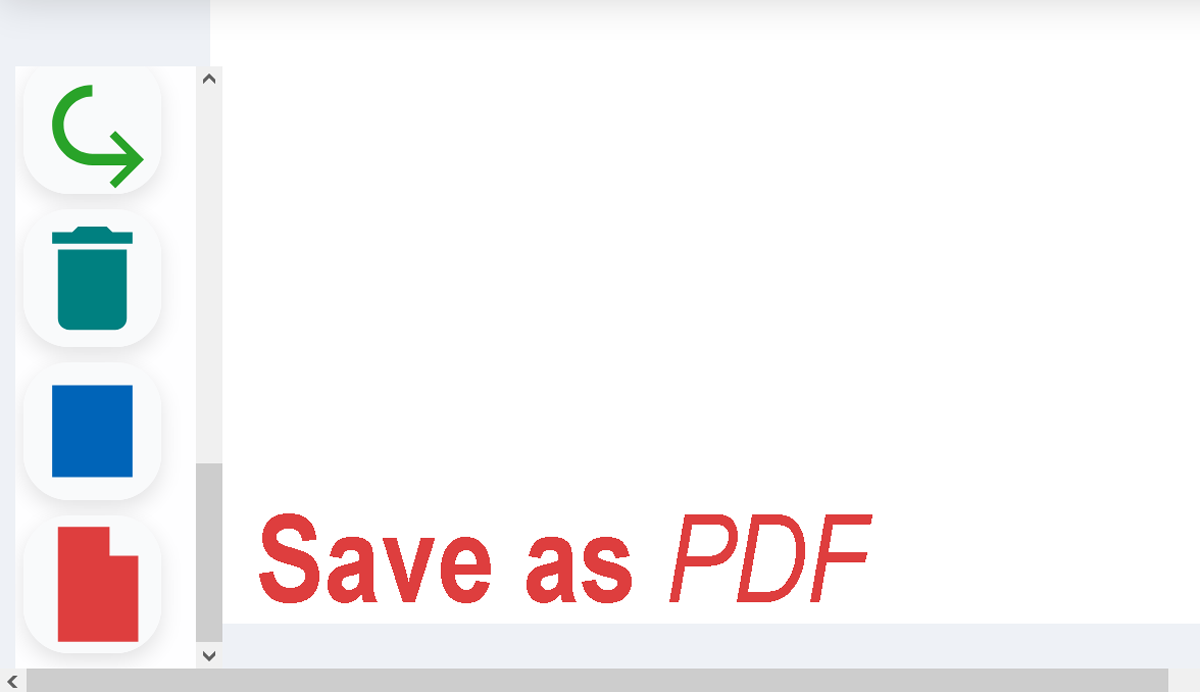
Save your whiteboard as a PDF document — best for printing, formal submissions, and sharing multi-page documents.
How to Export as PDF
Open the Export Menu
Click the Export button in the toolbar.
Select "Export as PDF"
Choose Save as PDF if your browser gives you an option, or open the Print dialog. If you have multiple boards, the PDF will include all of them as separate pages.
Browser's dialog box
Your browser’s print dialog will open with a preview.
Download and Share
Set Destination to “Save as PDF” and click Save. The PDF downloads to your device. Open it with any PDF viewer, print it, or attach it to emails and assignment submissions.
- PDF keeps the layout clean and printable
- Easy to attach in emails or upload as assignments
- Ideal for lesson plans, project notes, and meeting summaries
- Universally readable on any device
For best results, switch your browser to full-screen mode before exporting. This captures more of your canvas in the PDF.
How to Save Whiteboard Project Offline (Export as JSON File)
Looking for a way to save your whiteboard offline or download your full project file? You can easily export the whiteboard as a JSON file to store it locally on your device. This allows you to reopen, edit, and restore your board anytime without losing data.
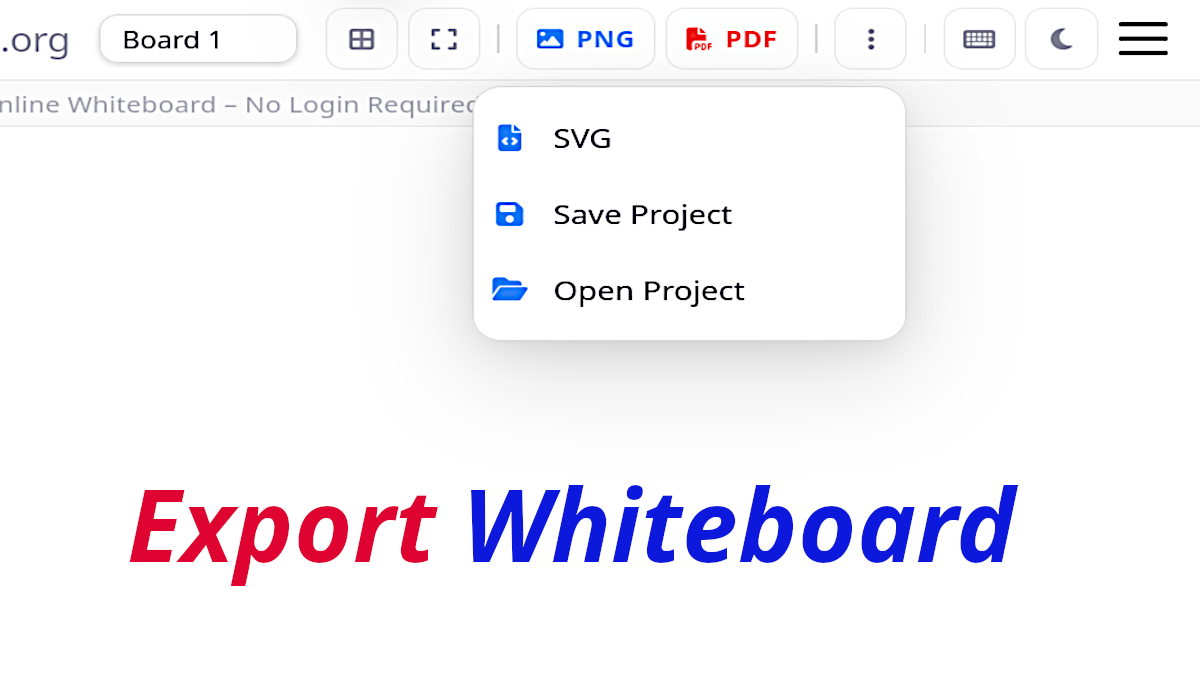
Save your whiteboard as an editable project file — so you can close the browser, come back later, and continue exactly where you left off.
Steps to Save Whiteboard Offline
Click Save or Save Project
Find the Save Project option in the toolbar or export menu. Click the Save Project or Export as JSON button in the toolbar. This saves your board data as a file to your device.
Store the File on Your Device
The system automatically converts your whiteboard into a structured JSON project file.
Select file location and download
The file downloads instantly to your computer for offline storage. Keep the project file somewhere easy to find — your Desktop, Documents, or a school folder. Name it clearly so you remember what it contains.
Reload to Continue Editing
Open onlinewhiteboard.org again. Click Load Project or Open File, select your saved file, and your board reloads exactly as you left it.
- Save whiteboard locally on your device
- Create a full backup of your whiteboard project
- Reopen and continue editing later
- Prevent data loss by keeping an offline copy
The JSON format stores all elements including drawings, shapes, text, positions, colors, and layout settings. If you want a complete editable whiteboard backup, exporting as JSON is the best offline saving method.
Where the File Gets Saved
Your browser normally saves the file directly into the Downloads folder. If your browser is set to “Ask where to save each file,” you may be prompted to choose a folder manually.
Typical default locations:
- Windows:
C:\Users\[Your Name]\Downloads - macOS:
~/Downloads - Mobile devices: “Downloads” or “Files” app
Why Saving Your Whiteboard is Important
Saving your whiteboard allows you to preserve your work even after closing the browser. Because most online whiteboards clear data when refreshed, downloading your board ensures nothing is lost.
Alternative: Take a Screenshot
If you prefer capturing only a specific part of the board instead of the entire canvas, taking a screenshot is a quick option.
Use your operating system’s built-in screenshot tools and crop to the region you want to keep.
Tips for Best Quality Saves
- Use a larger browser window to capture more details
- Zoom out before saving if your board is large
- Use clear colors with good contrast
- Avoid very small text that may become unreadable when exported
Which Format Should I Use?
| Format | Best For | Editable? |
|---|---|---|
| PNG | Sharing as image, Google Classroom, email | No |
| Printing, formal submissions, meeting notes | No | |
| Project File | Continuing work later, templates, archiving | Yes |
Frequently Asked Questions – Saving Your Whiteboard
How do I save my online whiteboard?
Click the Export or Save button in the toolbar. Choose PNG (image), PDF (document), or Project File (editable). The file downloads to your device instantly. No account needed.
Can I save and continue my whiteboard later?
Yes. Save the Project File to your device. Reopen OnlineWhiteboard.org, click Load Project, and select your file — your board reloads exactly as you left it.
Why isn't my whiteboard saving?
Make sure your browser isn't blocking file downloads. Check your browser's download settings and ensure pop-ups are allowed for OnlineWhiteboard.org. If issues persist, see our troubleshooting guide.
Can I save multiple boards at once?
Yes. Exporting as PDF includes all your boards as separate pages in one document. The project file saves all boards in one file.
How do I share my whiteboard with others?
Export as PNG or PDF and share the file via email, Google Classroom, Teams, Slack, or any other platform. Or share your screen during a video call to show it live.