How to Save Whiteboard as PDF
Export your entire whiteboard canvas as a clean, printable PDF document. Perfect for teachers creating lesson handouts, students submitting assignments, and professionals sharing meeting notes. PDF captures all drawings, text, shapes, and images exactly as shown on screen.
Why Canvas Export as PDF?
PDF creates professional-looking documents from your whiteboard canvas. Unlike PNG images, PDFs maintain crisp text quality when printed or zoomed. Perfect for formal submissions, lesson plans, reports, and archival storage.
- Print-ready with perfect scaling
- Universal format (works everywhere)
- Multiple pages if you have multiple boards
- Clean export (no toolbars or UI elements)
Method 1: Direct PDF Export (Recommended)
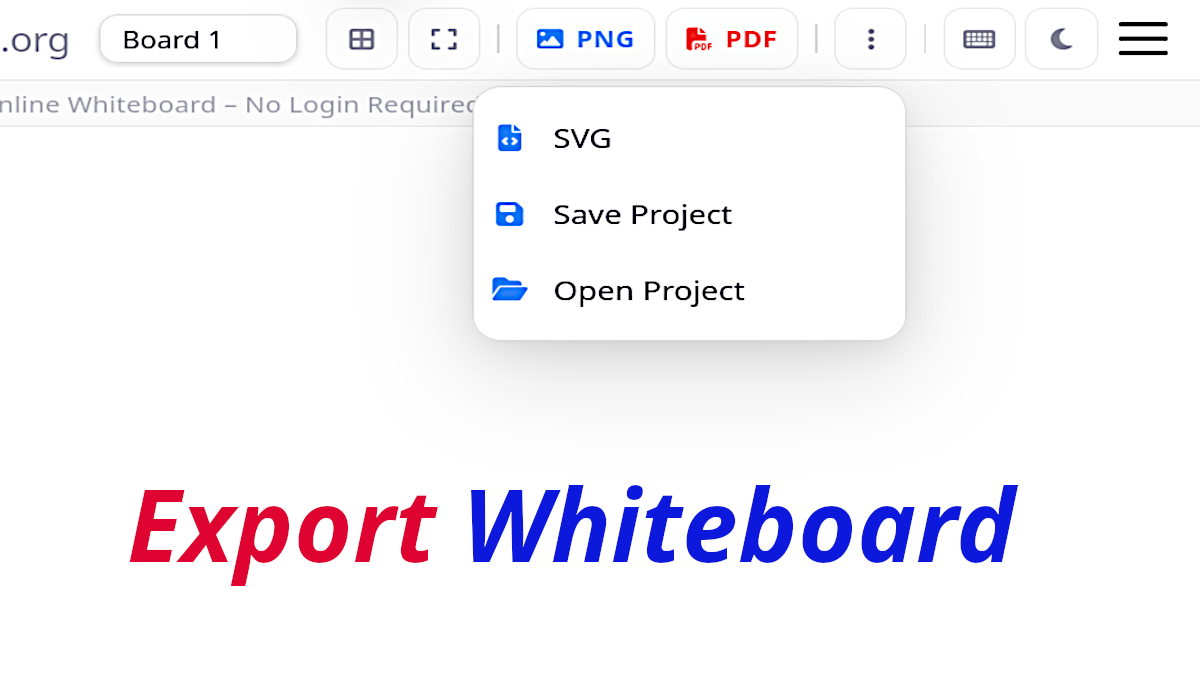
Most modern browsers support direct canvas-to-PDF conversion through the print dialog. This method captures your entire whiteboard canvas cleanly.
Open Export Menu
Click Export button in top or bottom toolbar. Look for PDF option directly.
Select PDF Export
Choose Export as PDF or Print Canvas. Browser opens print preview automatically.
Perfect Print Settings
Destination: Save as PDF | Margins: None/Minimum | Scale: 100% | Pages: All
Save to Downloads
Click Save. PDF downloads instantly to your Downloads folder, ready for printing or sharing.
Method 2: Browser Print Dialog
Use your browser's built-in print function as a reliable backup method. Works in Chrome, Firefox, Safari, Edge.
Zoom Out Completely
Fit entire canvas on screen (zoom out if needed). This ensures full content appears in PDF.
Open Print Dialog
Press Ctrl+P (Windows) or Cmd+P (Mac), or Menu → Print.
Save as PDF
Select Save as PDF printer. Set margins to minimum/none. Click Save.
Browser-Specific Settings
PDF Quality Tips
- Zoom out to fit entire canvas before export
- Use high-contrast colors and readable font sizes
- Full-screen browser captures maximum canvas area
- Avoid browser extensions that interfere with printing
- Test print first if submitting professionally
Where Files Download
PDFs save to your default Downloads folder:
- Windows:
C:\Users\[YourName]\Downloads - Mac:
~/Downloads - Mobile: Files app → Downloads
When to Use PDF vs Other Formats
| Format | Best Use Case | Quality | Size |
|---|---|---|---|
| Printing, formal docs, assignments | 📄 Print-perfect | Medium | |
| PNG | Email, slides, Google Classroom | 🖼️ Screen quality | Large |
| Project File | Continue editing later | ✏️ Editable | Small |
Frequently Asked Questions
Why choose PDF over PNG?
PDF maintains crisp text when printed. PNG images can appear pixelated. PDF is universally readable.
Does PDF capture my entire canvas?
Yes, if zoomed out completely. Use 100% scale and minimum margins for maximum canvas capture.
Can I save multiple boards in one PDF?
Yes. Navigate between boards and export each, or use project file export for all boards together.
PDF file too large/small?
Adjust browser zoom before export. Larger zoom = bigger file/higher quality. Test different zooms.
Download blocked by browser?
Check Downloads folder manually. Allow popups for onlinewhiteboard.org. Disable ad blockers temporarily.